> For the complete documentation index, see [llms.txt](https://docs.thryve.health/llms.txt). Markdown versions of documentation pages are available by appending `.md` to page URLs; this page is available as [Markdown](https://docs.thryve.health/getting-started/use-the-thryve-dashboard.md).
# Use the Thryve Dashboard
Thryve Dashboard is a unified web interface to manage Thryve's core products - the SDKs and Web APIs. It enables customers to configure, manage, and visualize wearable-derived health data from their users in a single dashboard.
{% hint style="info" %}
The Dashboard alone is not sufficient. You must integrate Thryve SDK or API into your application first. Once integrated, you can use the Dashboard to manage configurations remotely and analyze end-user data
{% endhint %}
## Overview Page
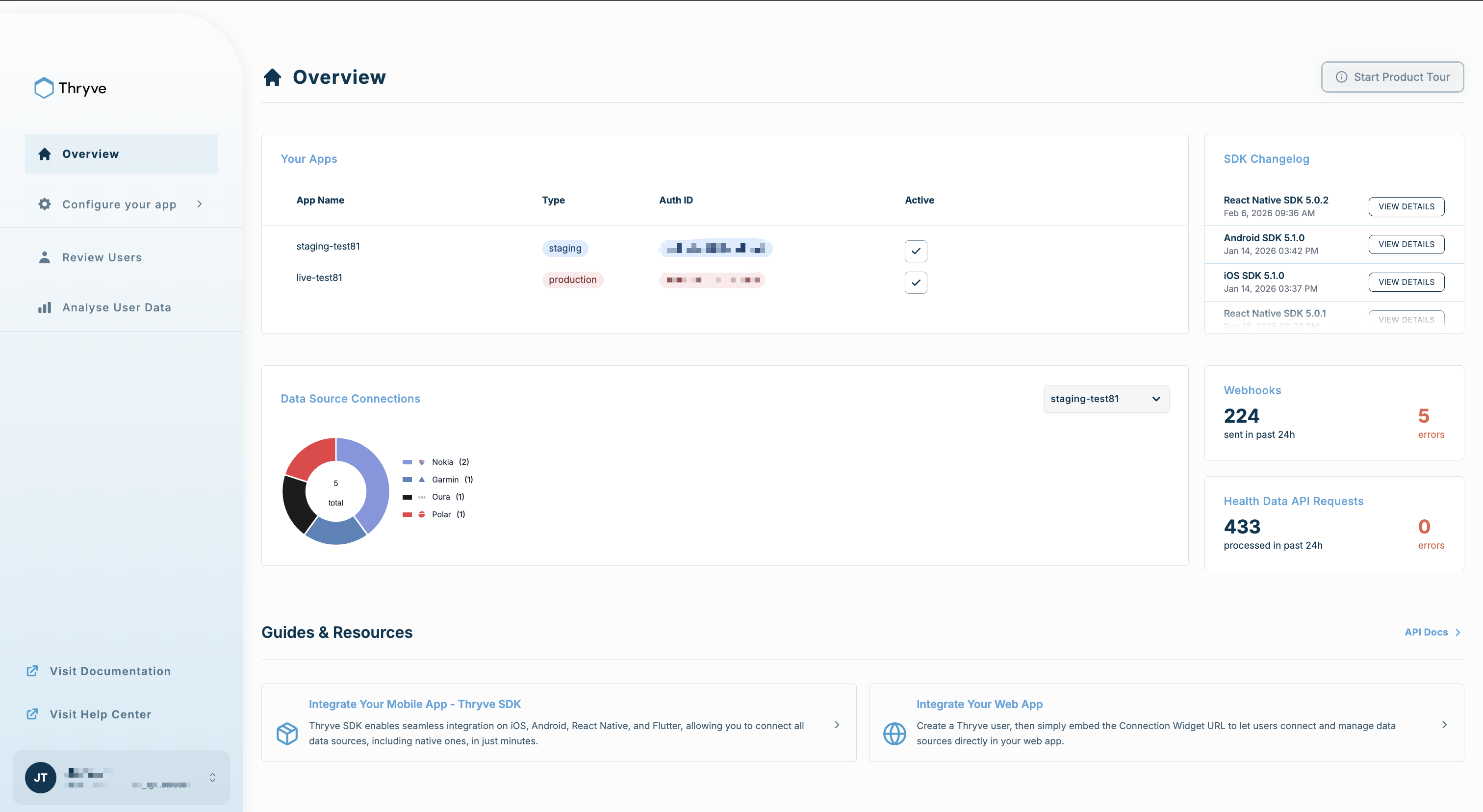
The Overview page provides a snapshot of your apps and Thryve integration metrics.
Two of the most useful sections would be:
1. **Data source connections**
* See the distribution of connected data sources across your end users for each app
2. **Integration metrics**
* Number of Webhooks sent and errors
* Number of Health API requests processed and errors
These metrics can be used to monitor your integration health and identify potential issues.
## Configure your apps
Manage three core configuration types that control how Thryve collects and delivers health data.
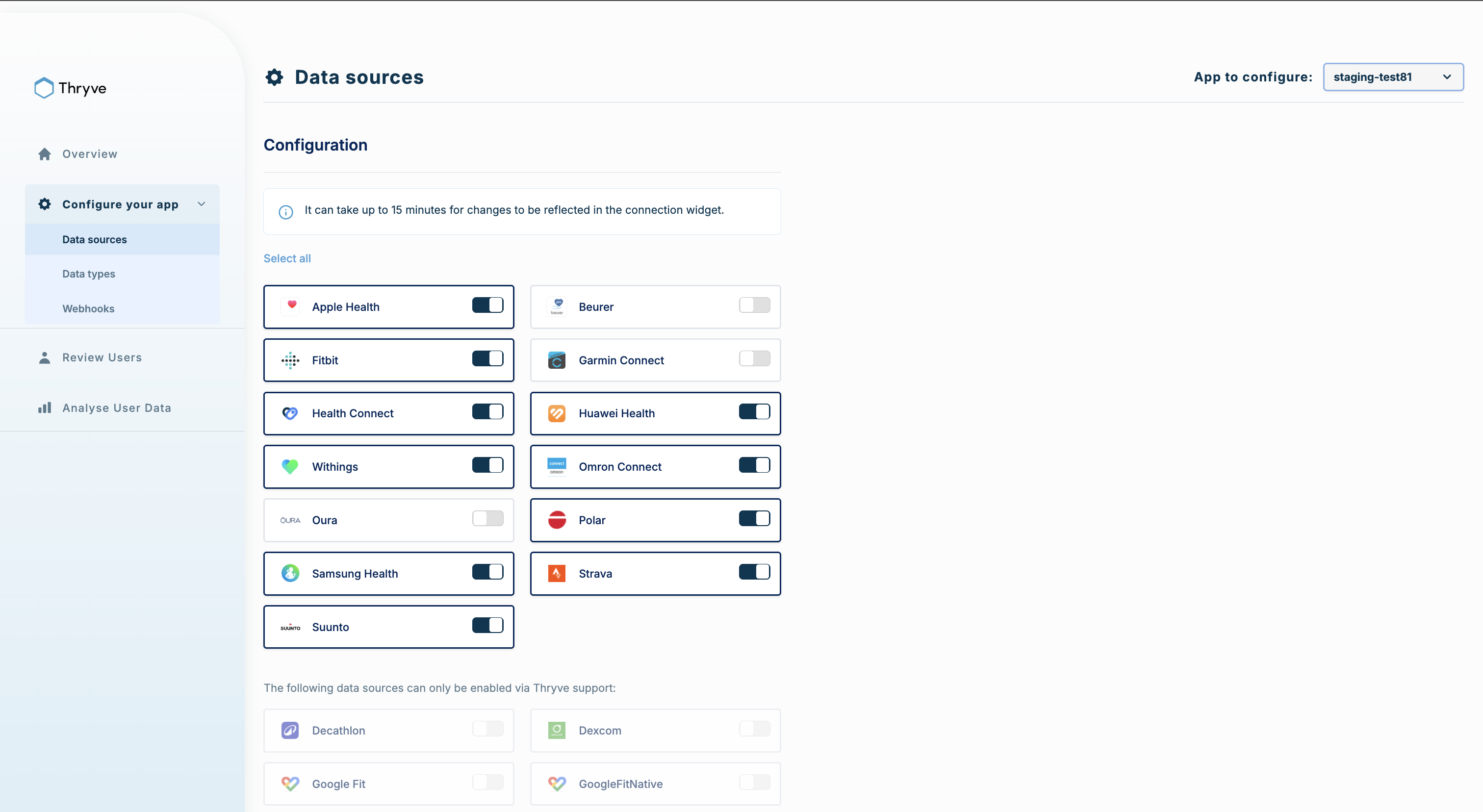
1. **Data sources**\
Enable or disable health and fitness platforms ( Apple Health, Samsung Garmin, Strava, etc.) available to your end users through the Thryve connection widget.\
Some data sources with custom oAuth-client needs to be manually enabled by Thryve support, which appear at the bottom of the list. Contact support to enable them.
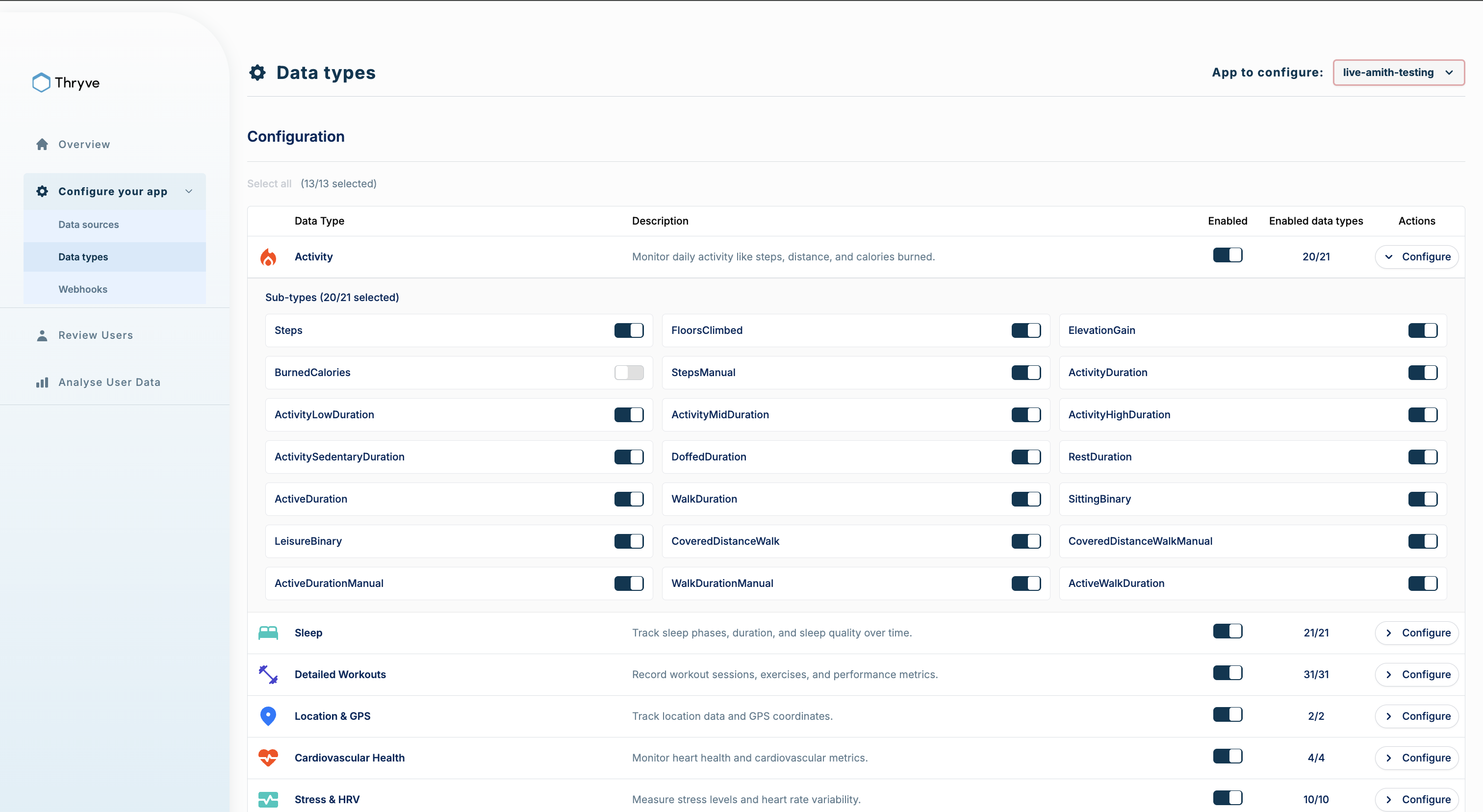
2. **Data types**\
Control which health data categories and specific data types Thryve collects from connected sources. You can enable or disable full categories (Activity, Sleep, Cardiovascular Health, etc.) or configure individual data types within each category.\
For example, under Activity, you can enable steps while disabling ElevationGain. Only enabled data types are collected from end users and sent to your webhook endpoint.\
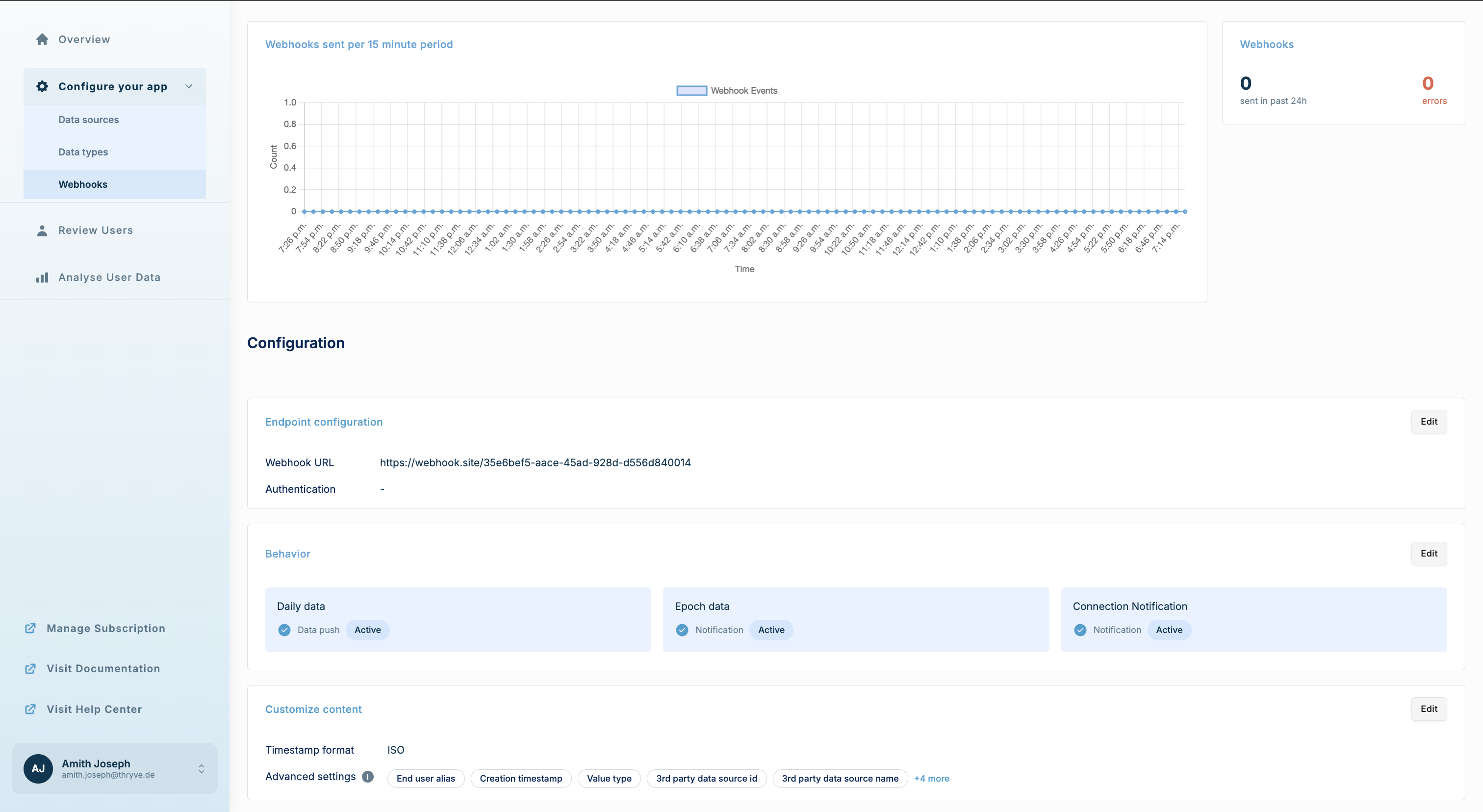
3. **Webhooks**\
Configure your webhook endpoint to receive real-time health data updates from Thryve.\
\
**Endpoint configuration:**
* Set your webhook URL where Thryve sends data
* Add optional authentication for secure webhook delivery
* Choose webhook type: Data push webhooks (recommended) or notification webhooks
* Customize message format and advanced settings\
\
**Test your webhook:** \
Use the test function to send a sample payload to your endpoint and verify it's receiving data correctly.\
## Manually View End-User Data
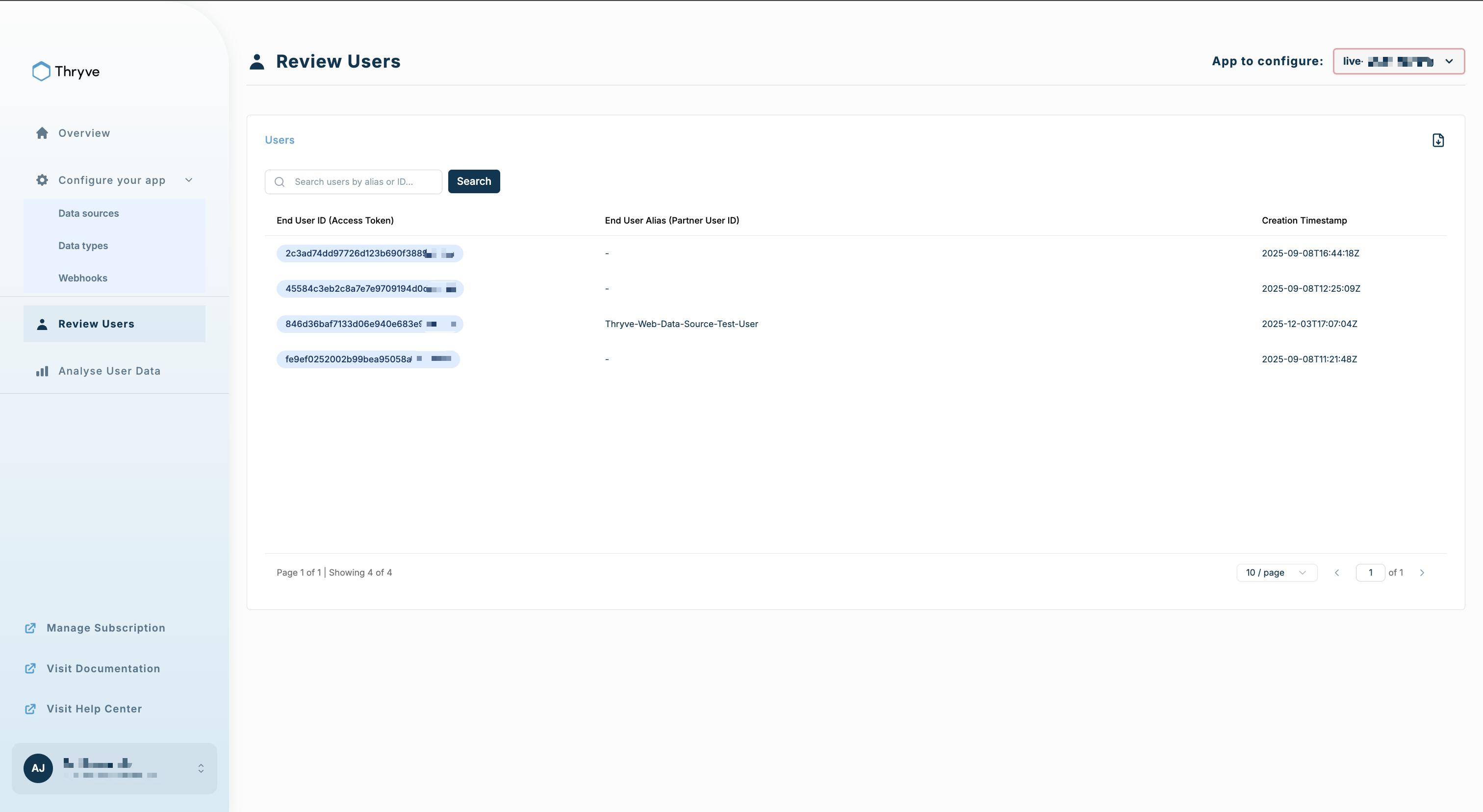
1. **Review users**\
View all end users who have connected their wearable data sources through your app.
The users table displays:
* End User ID (Thryve's unique identifier)
* End User Alias (optional identifier you can set)
* Creation timestamp (when the user was created in Thryve)
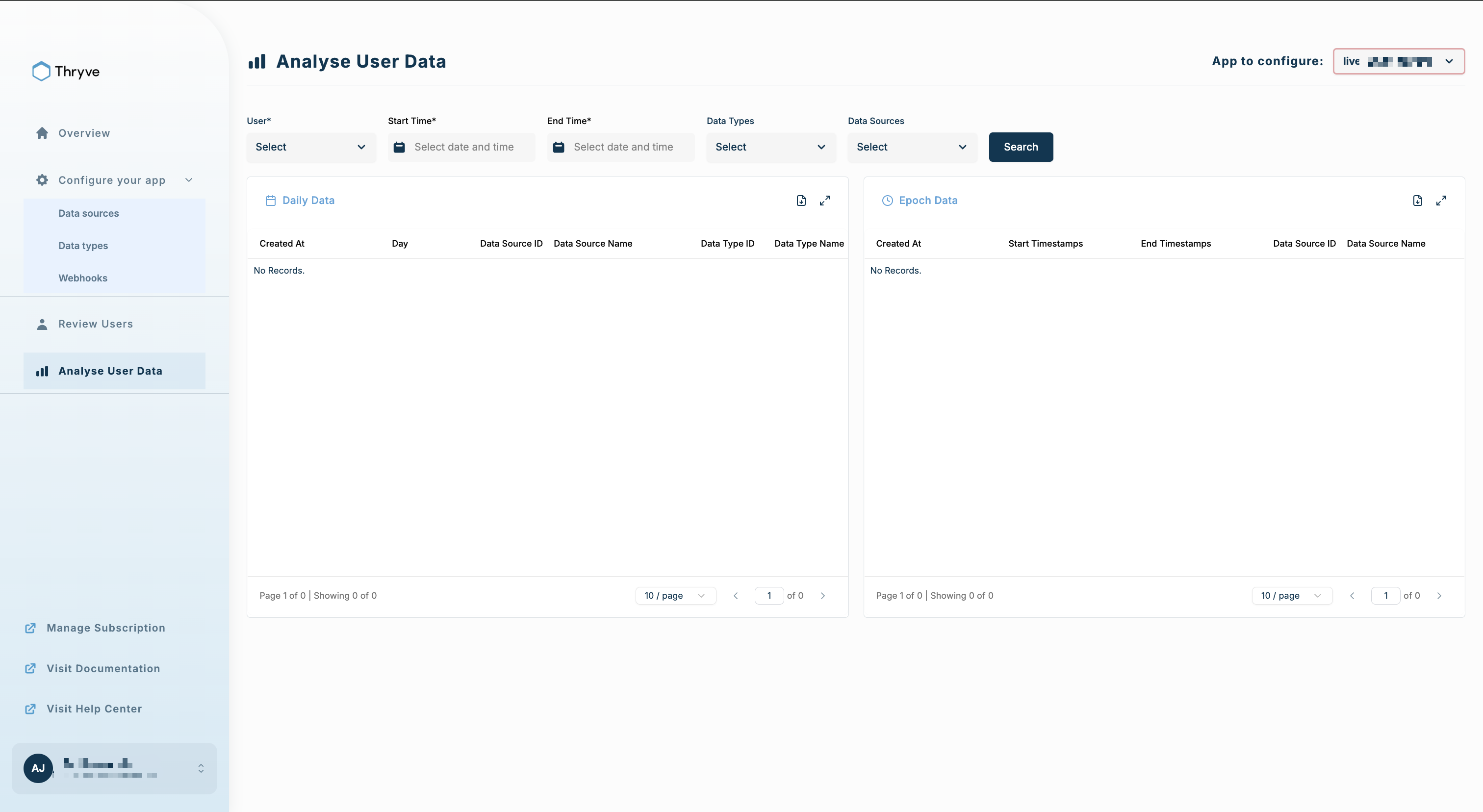
2. **Analyze user data**\
Request and view health data for specific end users directly in the Dashboard without using API calls or tools.\
\
**How to use:**
1. Select a user from the dropdown
2. Set start and end dates for the data request range
3. (Optional) Filter by specific data sources or data types
4. Click **Search** to view results
The data table displays both epoch data and daily data based on availability. Export data for further analysis.\
---
# Agent Instructions
This documentation is published with GitBook. GitBook is the documentation platform designed so that both humans and AI agents can read, navigate, and reason over technical content effectively. Learn more at gitbook.com.
## Querying This Documentation
If you need additional information that is not directly available in this page, you can query the documentation dynamically by asking a question.
Perform an HTTP GET request on the current page URL with the `ask` query parameter, and the optional `goal` query parameter:
```
GET https://docs.thryve.health/getting-started/use-the-thryve-dashboard.md?ask=&goal=
```
`ask` is the immediate question: it should be specific, self-contained, and written in natural language.
`goal` is optional and describes the broader end goal you are ultimately trying to accomplish on behalf of the user. GitBook uses it to tailor the answer towards what is most useful for that goal.
The response will contain a direct answer to the question and relevant excerpts and sources from the documentation.
Use this mechanism when the answer is not explicitly present in the current page, you need clarification or additional context, or you want to retrieve related documentation sections.