> For the complete documentation index, see [llms.txt](https://docs.thryve.health/llms.txt). Markdown versions of documentation pages are available by appending `.md` to page URLs; this page is available as [Markdown](https://docs.thryve.health/getting-started/get-your-api-keys.md).
# Get your API Keys
This guide walks you through creating your Thryve account and obtaining the credentials necessary to integrate with our API and SDKs.
{% stepper %}
{% step %}
### Subscribe to Thryve
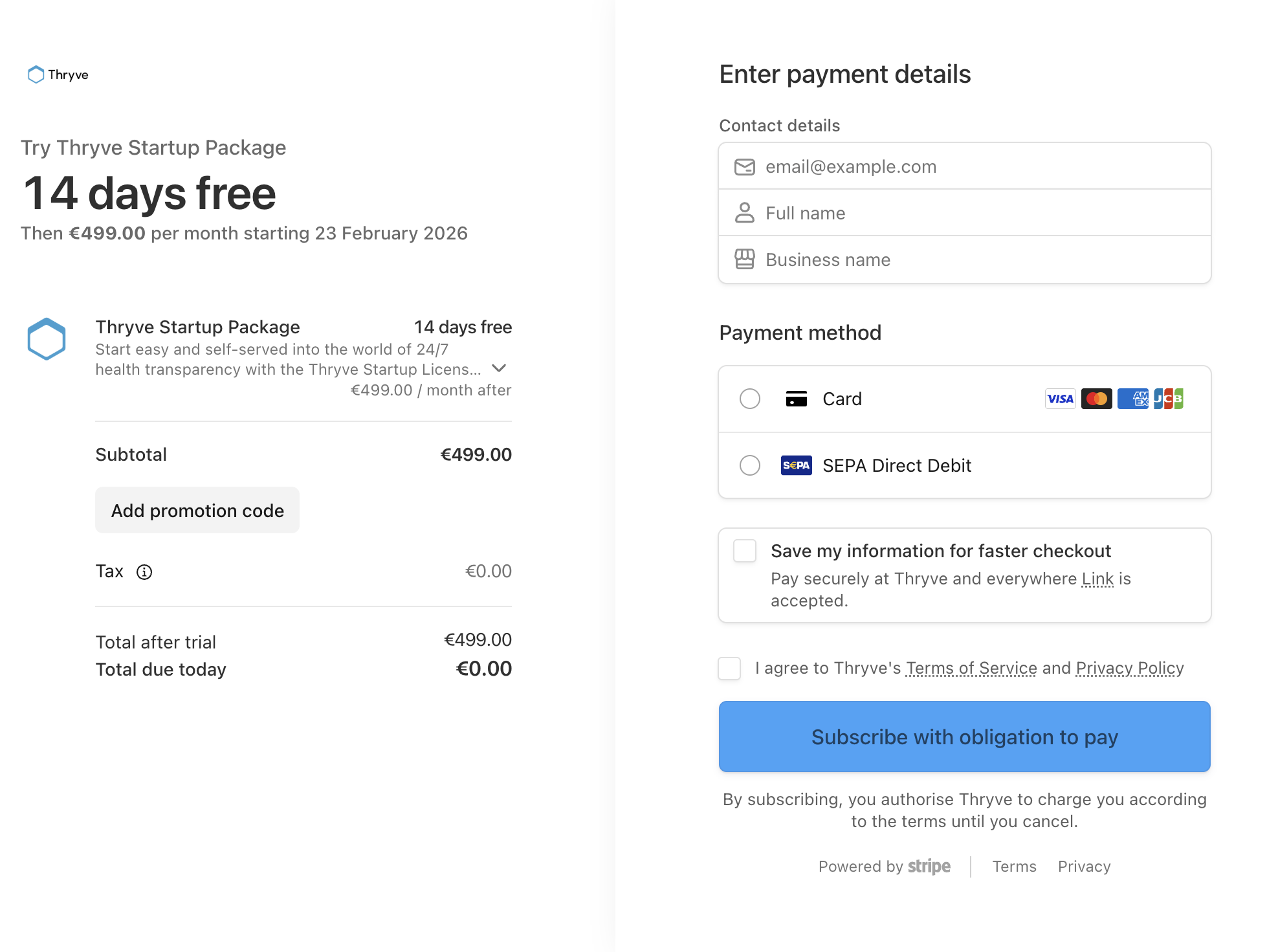
Visit [Thryve Health Pricing](https://www.thryve.health/product/pricing) to choose a suitable plan. You'll be directed to Stripe checkout for payment.
After payment confirmation, you'll receive a welcome email at your specified address. This email includes a link to set up your Thryve account.
{% endstep %}
{% step %}
### Create your account
Click **CREATE MY THRYVE ACCOUNT** in the welcome email. Follow these steps:
1. Set a secure password for your Thryve account.
2. Configure two-factor authentication (2FA) with an authenticator app.
3. Name your app.
After setup, Thryve automatically creates two app environments:
* `staging-{your_app_name}` – For testing and development.
* `live-{your_app_name}` – For production.
You'll then be redirected to the Thryve Dashboard overview page.
{% endstep %}
{% step %}
### Access and store your credentials
After naming your apps, you'll receive three separate emails containing:
1. **Global API Key:** Required for any API requests; this key is consistent across all your Thryve apps
2. **App Authentication Keys**: Required for SDK initialization and API requests; each Thryve app receives unique credentials.
3. **SDK Download Credentials:** Necessary to download Thryve SDK dependencies
{% hint style="info" %}
All credentials are displayed only once and expire 24 hours after email delivery. Store them securely and share them only with authorised team members. If you lose access to your credentials, [contact support](https://thryve.zendesk.com/) to generate a new credential set. Previously shared credentials cannot be recovered.
{% endhint %}
{% endstep %}
{% step %}
### Explore Thryve using the product demo tour (optional)
Upon first accessing the Dashboard, you'll be invited to begin the product orientation tour. You have the option to skip it and revisit later or complete the 5-step guided setup immediately.
**Key Features of the Tour:**
* **Staging App Setup**: Configure your app and manage settings within the Thryve Dashboard.
* **Data Source Selection**: Choose which data sources and data types you want to enable.
* **Webhook Configuration**: Establish and test webhook endpoints using mock payloads.
* **User Experience Simulation**: Experience the Thryve connection widget as your end users would.
* **API Testing**: Test Thryve API requests using either real or mock data.
Any configurations made during the tour are saved to your staging app, providing you with a foundational setup to build upon.
{% endstep %}
{% endstepper %}
### What's next?
You now have everything needed to integrate Thryve.
* **For Mobile App Integration:** [Follow the Mobile Integration Guide](/integrate-your-mobile-app/setup-thryve-sdk.md)
* **For Web App Integration:** [Follow the Web Integration Guide](/integrate-your-web-app/create-thryve-user.md)
---
# Agent Instructions
This documentation is published with GitBook. GitBook is the documentation platform designed so that both humans and AI agents can read, navigate, and reason over technical content effectively. Learn more at gitbook.com.
## Querying This Documentation
If you need additional information that is not directly available in this page, you can query the documentation dynamically by asking a question.
Perform an HTTP GET request on the current page URL with the `ask` query parameter, and the optional `goal` query parameter:
```
GET https://docs.thryve.health/getting-started/get-your-api-keys.md?ask=&goal=
```
`ask` is the immediate question: it should be specific, self-contained, and written in natural language.
`goal` is optional and describes the broader end goal you are ultimately trying to accomplish on behalf of the user. GitBook uses it to tailor the answer towards what is most useful for that goal.
The response will contain a direct answer to the question and relevant excerpts and sources from the documentation.
Use this mechanism when the answer is not explicitly present in the current page, you need clarification or additional context, or you want to retrieve related documentation sections.