Direct bluetooth device connection

circle-exclamation

With Thryve, you can connect blood glucose monitors and heart rate monitors directly via Bluetooth Low Energy (BLE). The ThryveBLE module abstracts the complexity of Bluetooth integration by providing:

  • Effortless connectivity: Automatically handles permissions, device discovery, connections, and communication.

  • Automated data access: Retrieves health data from connected devices and uploads it to the Thryve data warehouse, ensuring your application always has up-to-date metrics.

  • Comprehensive device handling: Manages device interactions end-to-end, from connection stability to reliable data acquisition.

This guide explains how to let users connect and disconnect devices and includes UI integration examples. For a best-practice implementation, refer to the Thryve Sample App.

circle-info

The module is compatible with Blood Glucose Monitorsarrow-up-right and Heart Rate Monitorsarrow-up-right that adhere to open Bluetooth device profiles. Devices from manufacturers that do not follow Bluetooth standards may not function properly.

chevron-rightVerified Blood Glucose Monitorshashtag

Correct functionality has been verified for the following devices:

  • Roche ACCU-CHEK Instant

  • Roche ACCU-CHEK Guide

  • FORA 6 Connect

  • Contour Care

chevron-rightVerified Heart Rate Monitorshashtag

Correct functionality has been verified for the following devices:

Integrate Thryve BLE with your application

To be able to integrate ThryveBLE module you need to:

  1. Integrate the ThryveBLE module Make sure to also add ThryveCore and ThryveCommons modules. Follow either the cocoapods or framework files instructions in the iOS section.

  2. Add Bluetooth Capability In Xcode: Navigate to Target → Signing & Capabilities → add (+) → Bluetooth.

  3. Add Privacy - Bluetooth Always Usage Description to Info.plist <key>NSBluetoothAlwaysUsageDescription</key>

    <string>Bluetooth permission for Thryve</string>

Configure the ThryveBLE module

When initializing Thryve SDK make sure to define the deviceTypes and an optional ThryveBLEEventListener in the ThryveBLEConfig .

Parameter
Description
Mandatory

deviceTypes

Limits the BLE device types the host application supports (e.g. heart rate monitor). Only devices matching the ThryveBLEDeviceType will appear in discovery.

no

eventsListener

An object of ThryveBLEEventListener that will have to implement the following functions to receive events from the ThryveBLE module.

no

Allow users to connect to devices

To enable Bluetooth connectivity for users, implement the following features:

  • Display a list of nearby devices available for connection.

  • Allow users to connect to and disconnect from devices.

  • Provide connection status and troubleshooting information.

Using ThryveBLE, these functionalities can be achieved quickly with just a few functions to expedite your initial integration.

Start device discovery

To discover nearby BLE devices, initiate startDeviceDiscovery. Handle any found devices using onDeviceFound in the ThryveBLEEventListener. The discovery will end when stopDeviceDiscovery is called or the discovery process timed out as per configuration.

The Thryve SDK only returns Bluetooth devices that match the configured Bluetooth Device Profiles, automatically filtering out unsupported devices.

circle-info

Be aware that devices may appear compatible if manufacturers advertise open Bluetooth Device Profiles in device discovery, yet choose proprietary integration methods for connection and data access.

Recommendation:

Manage the scanning process carefully. Avoid continuous scanning or high scanning timeouts when no devices are available or users opt not to connect a device. Continuous scanning can significantly drain the smartphone's battery, leading to user frustration and potential app uninstallation.

Connect to BLE device

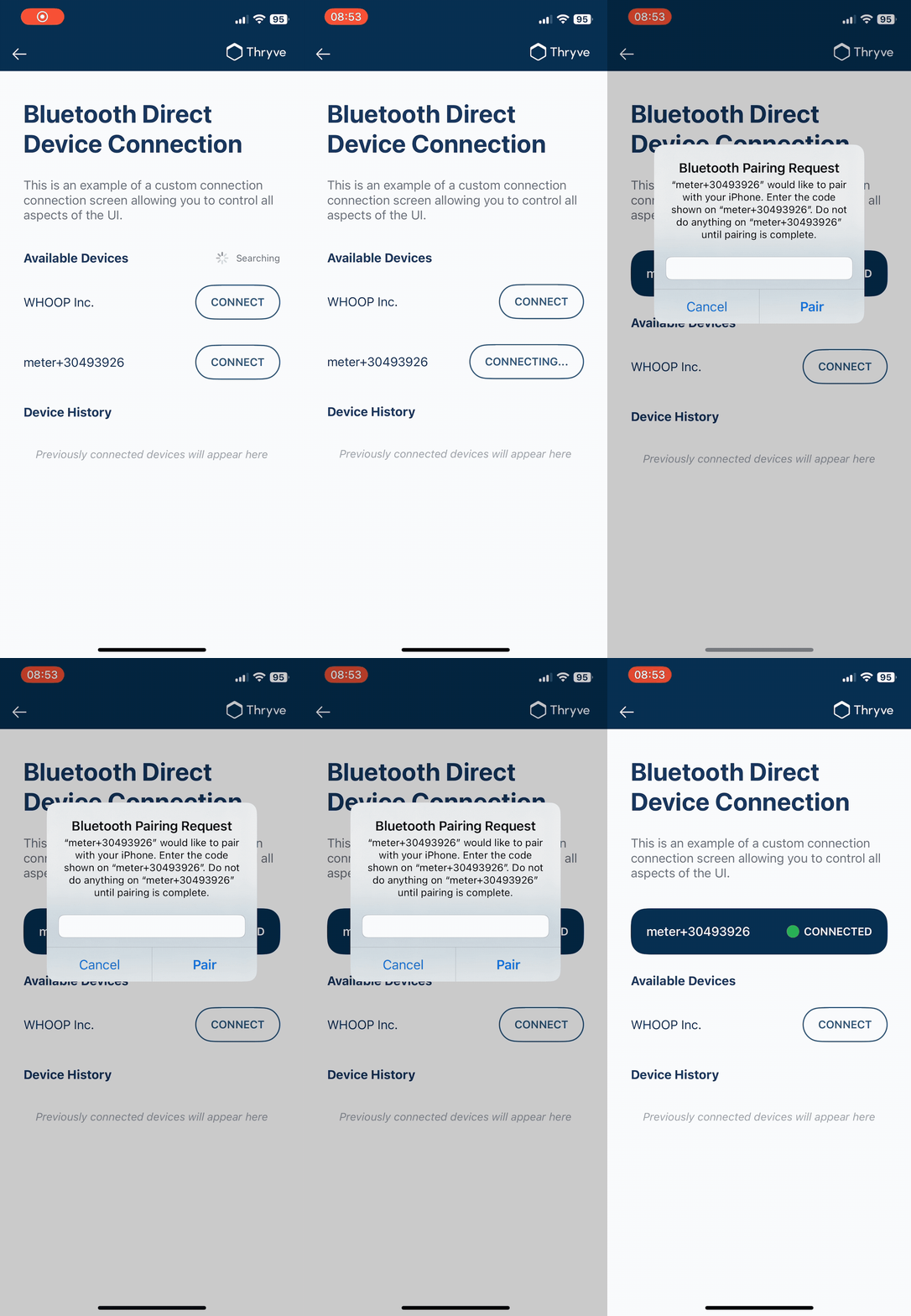
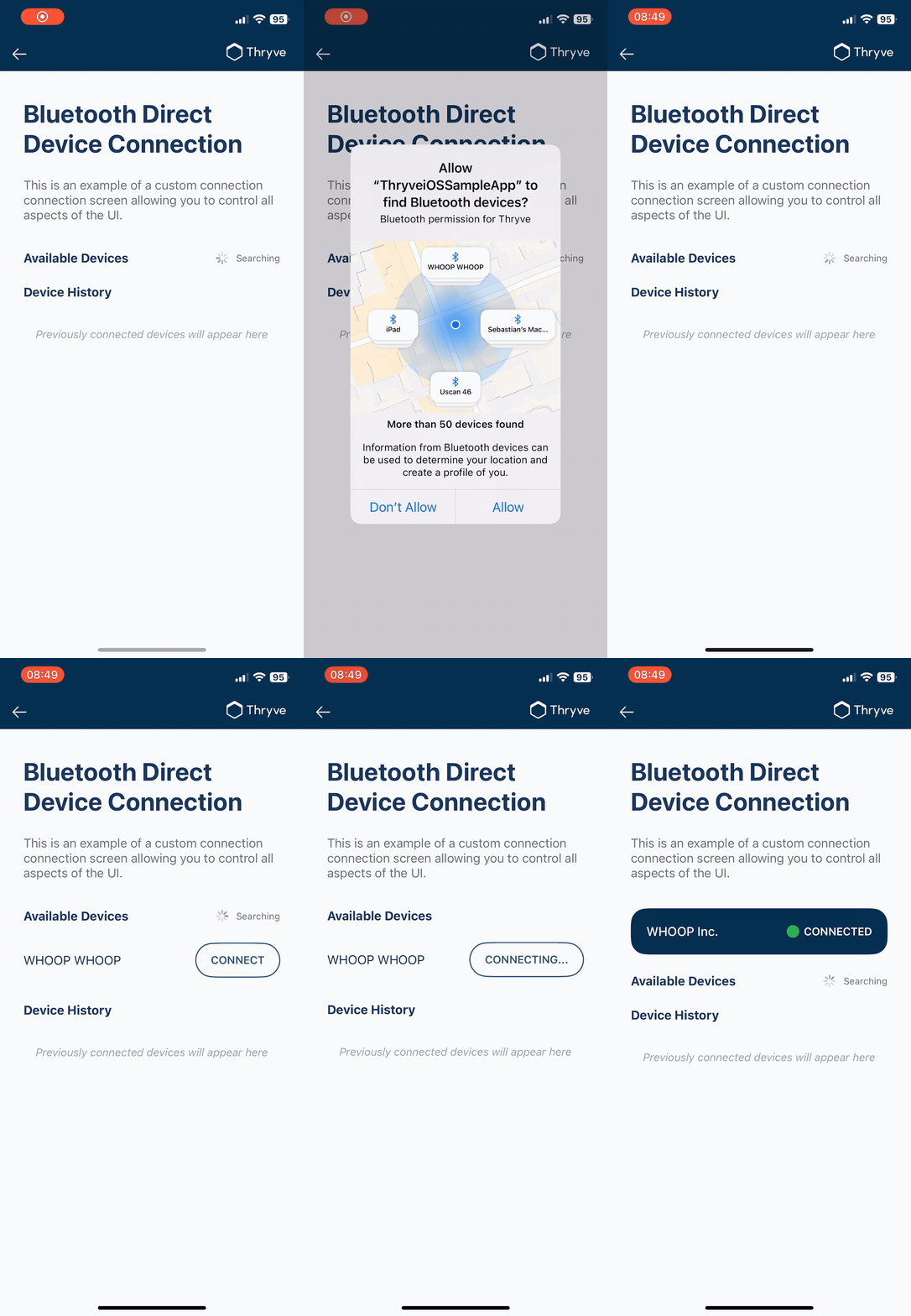
To enable users to connect to a BLE device upon a button click, utilize the connectDevice method from the ThryveBLE. Handle the connection status through the ThryveBLEEventListener interface, using the onDeviceConnecting and onDeviceConnected callback methods for processing connection events effectively.

Showing Bluetooth Device Pairing Process
Pairing process with Roche ACCU-CHEK Guide

Once connected, all available data is automatically retrieved and uploaded to the Thryve backend. For broadcasting devices like heart rate monitors, heart rate data is accessible locally in real-time and is automatically uploaded every 5 minutes, as long as the connection remains active.

Disconnect BLE device

To enable users to manually disconnect their BLE device, use disconnectDevice. Handle the disconnection status with the ThryveBLEEventListener's onDeviceDisconnected callback.

Show device connection status

We recommend to transparently display users actively connected devices as well as known, previously connected devices and allow them to re-connect those.

Last updated